Save pages from your computer with the Chrome extension
Reading something on your computer? The Noodle Chrome extension shows a QR code of the page. Scan it with your phone and tap Save to keep it in Noodle.
On this page
Found a good article on your computer and want it in Noodle on your phone? The Noodle Assistant extension for Chrome shows a QR code of the page. Scan it with your phone's camera, tap Save, and the page is saved like any other link.
You'll need the Noodle Assistant app on your Android phone and the extension in Chrome (version 127 or newer) on your computer. The extension isn't in the Chrome Web Store yet.
Show the code for a page
- In Chrome, open the page you want to save.
- Click the Noodle icon in the toolbar, or press Alt+Shift+N (the default shortcut). The Save to Noodle popup opens with a QR code, the page's title and its website.
To save a page or a link without opening it first, right-click and choose Save this page to Noodle or Save this link to Noodle. The same popup opens with the code for what you picked.
Scan it with your phone
- Open your phone's camera app and point it at the code.
- Tap the link your camera shows for the code. If your camera doesn't read QR codes, use a scanner app such as Google Lens. Noodle Assistant opens on the Save page and asks Save this link?, with the page's address.
- Tap Save. The link is added as a part, shows Fetching title…, then the real title.
- Tap Done to file it, as with any other save. See the Save page.
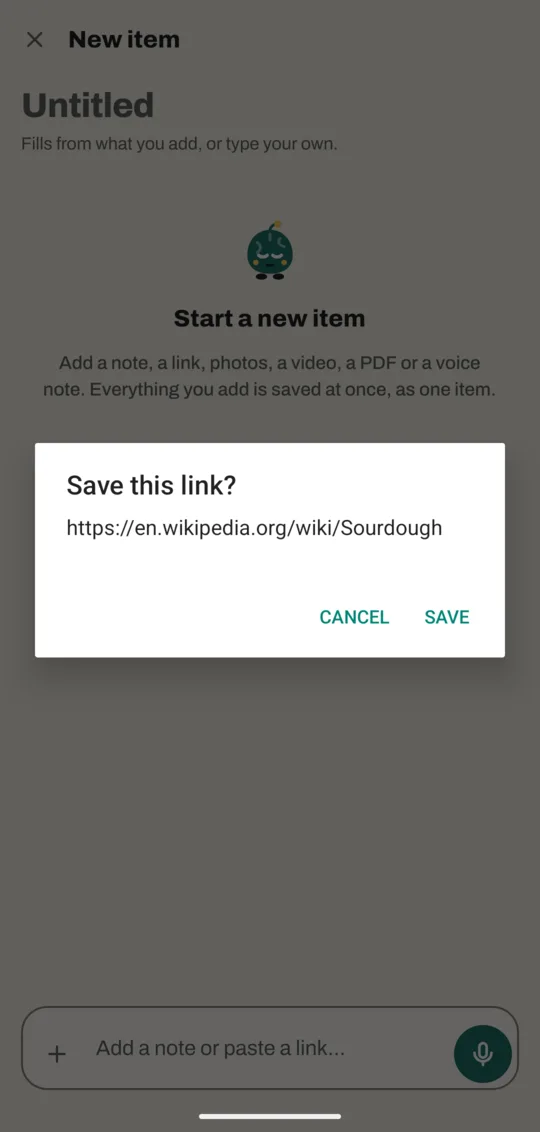
It works whether Noodle is open, in the background or closed. If you're already building a save on the Save page, the link joins it. If you saved the same link before, Noodle says Already saved as and its title, as it does for a pasted link.
If your phone opens a web page instead
Some phones, and older versions of the app, open the link in the browser instead. You'll see a noodleassistant.com page titled Save this page to Noodle Assistant with the address.
- Tap Open in Noodle Assistant. The app opens and asks Save this link?
- Tap Save.
Without the app on the phone, that button goes to the noodleassistant.com home page.
What stays private
- The extension sends nothing anywhere. It draws the code on your computer.
- The page's address travels in the part of the link after the #. Browsers never send that part to our website, so we never see which page you saved.
- Nothing is saved until you tap Save. Tap Cancel and the link is gone.
- Tracking bits that some links carry (such as utm_source) are left out of the code.
Good to know
- Only web pages can be saved. On Chrome's own pages, files and extension pages, the popup says This page can't be saved.
- If a page's address is too long for a code, the popup says so and suggests opening the page on your phone. Open it there and share it to Noodle instead.
Related
Don't have Noodle yet?
Free for Android. No sign-up, and everything stays on your phone.