Set up Noodle the first time you open it
Go through the short welcome screens: your name, your languages and an optional sign-in that downloads smart features. You can skip any of them.
On this page
The first time you open Noodle, a few short screens ask what to call you and which languages you speak. Most have Skip in the top corner (on the first screen it goes straight to Home), and you can change every answer later in Settings.
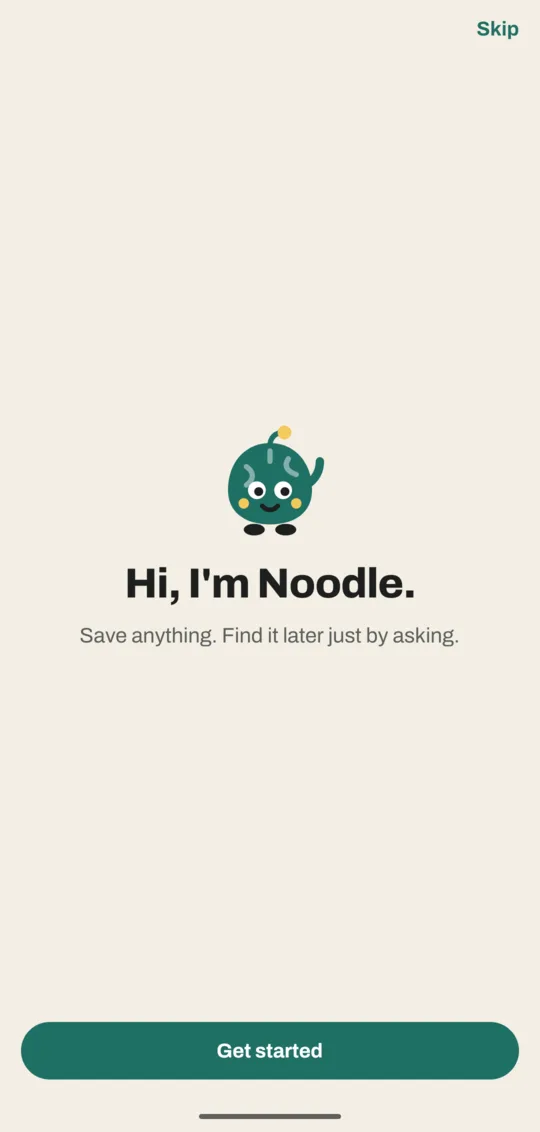
Go through the welcome screens
- Tap Get started. The next screen asks What should Noodle call you?
- Type a first name or a nickname and tap Continue. Home will greet you with it ("Good afternoon, Sam").
- On Which languages do you speak?, tap every language you speak or record in. Noodle suggests the ones common where you live; tap More languages for the full list.
- Tap Continue (it shows how many you picked, such as Continue · 2 chosen). The sign-in screen opens.
- Tap Continue with Google, or Continue with email: type your email, tap Send code and type the 6-digit code from the email. To go on without an account, tap Skip.
- If you signed in, the Getting Noodle ready screen shows what's downloading. Tap Start using Noodle to go Home while it carries on.
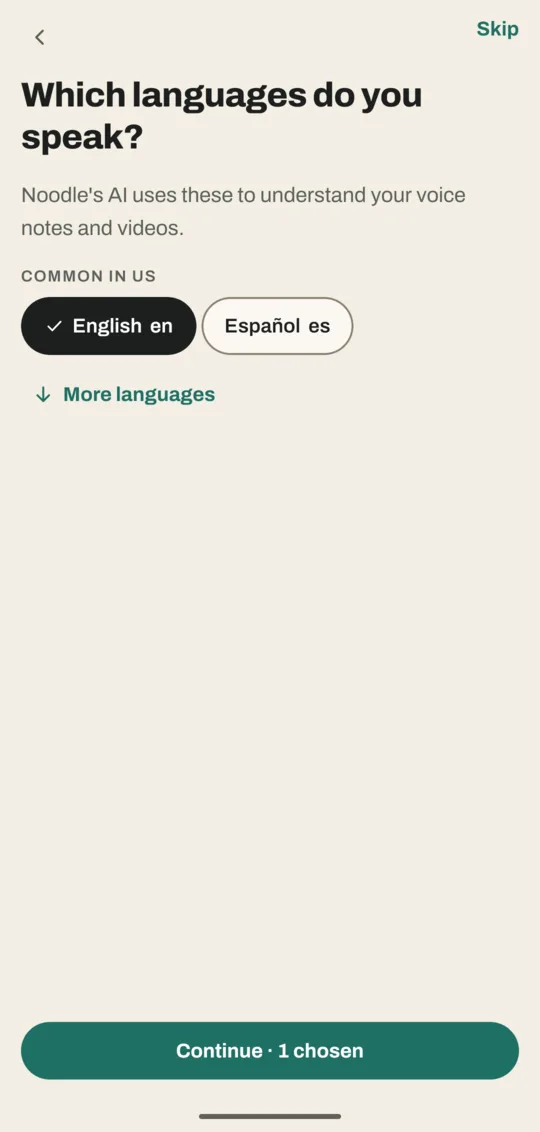
Why the language question matters
Noodle uses your languages to pick which smart features to download: understanding voice notes and videos in those languages, and searching across them. Pick only what you use. Each extra language can mean another download, and they take space on your phone.
Why sign in at all
The account is only for downloads. Without it, Noodle still saves, organizes and searches everything, with basic search in English. Signing in lets Noodle download the smart features for your languages. Your saves never go to the account; they stay on your phone. More on this in Account and AI languages.
What you see after setup
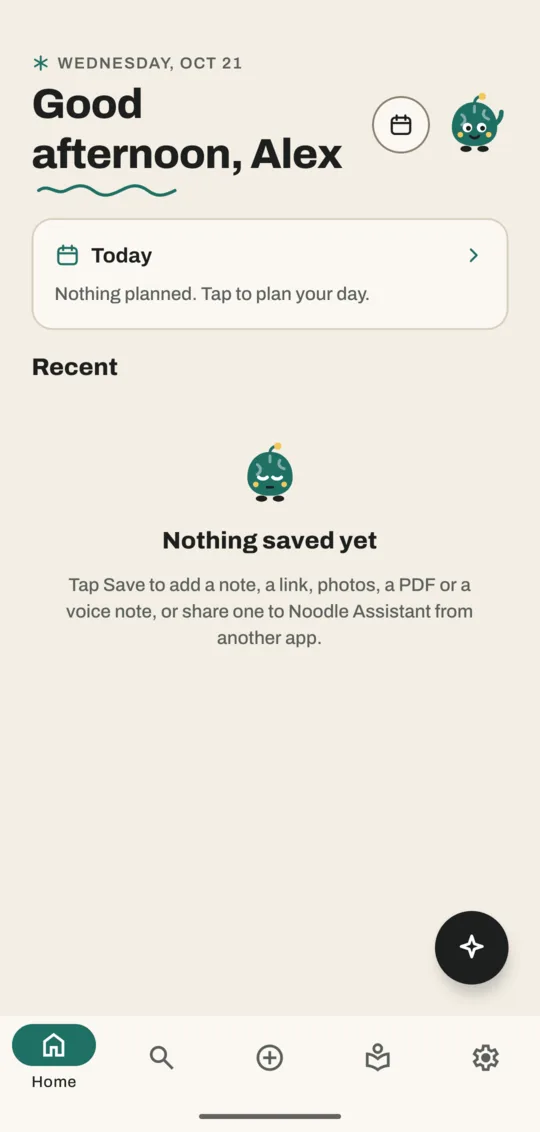
Home starts almost empty, with a Today card and a note saying Nothing saved yet. That changes as soon as you save something.
Good to know
- Skipped everything? Nothing is lost. Go to Settings: the top card has Sign in and Edit name, and AI languages has Change.
- Downloads wait for Wi-Fi unless you choose to use mobile data.
Next: find your way around the five tabs.
Don't have Noodle yet?
Free for Android. No sign-up, and everything stays on your phone.