Browse and filter everything you saved in the Library
The Library lists every save, newest first. Filter it by source, category or tag, and select several items at once to file or delete them together.
On this page
The Library tab lists everything you've saved, newest first, with a count at the top ("12 saved"). Use it when you want to browse rather than look for one thing.
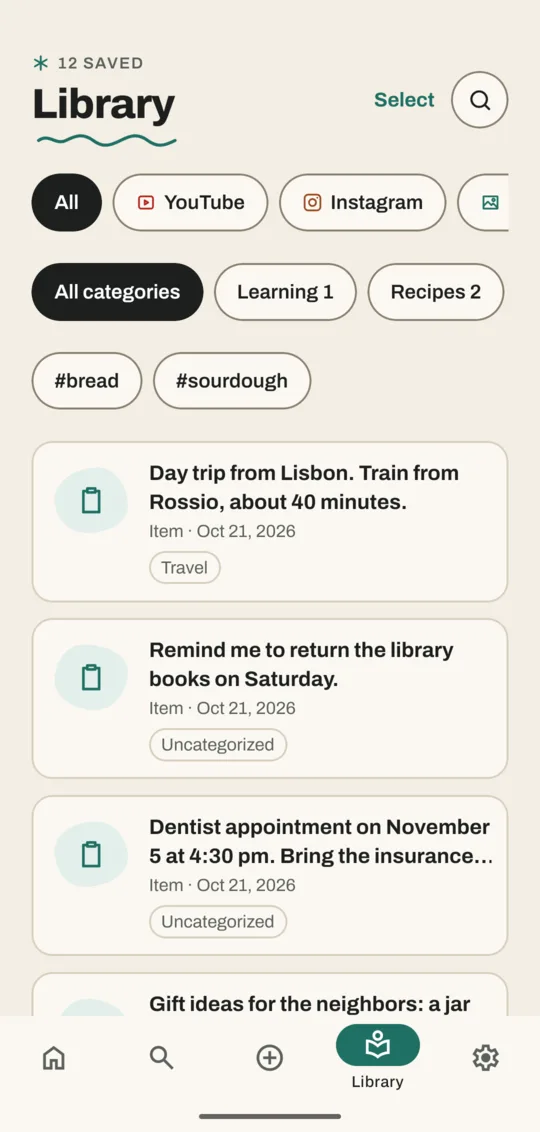
Filter the Library
- Tap the Library tab.
- In the first row, tap a source: All, YouTube, Instagram, Photos, videos & PDFs, Notes or Web (swipe the row sideways).
- In the second row, tap a category, such as Recipes 2. The number is how many saves it holds.
- Tap a tag such as #bread to narrow it further.
- Tap Clear filters to see everything again.
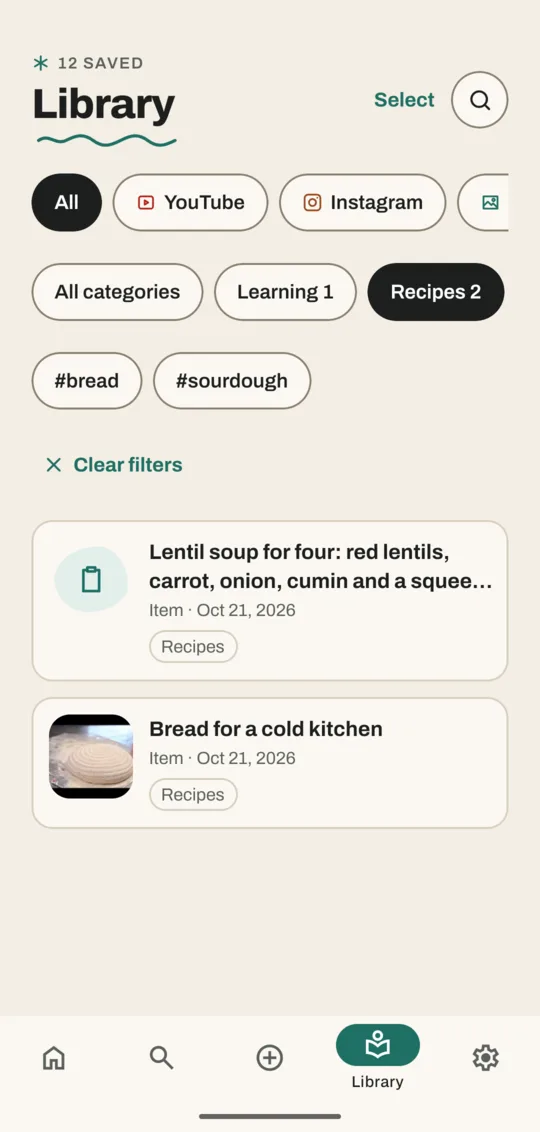
Home's category chips open the Library already filtered to that category.
File or delete several saves at once
- Tap Select at the top, or touch and hold a save.
- Tap the saves you want (each one gets a tick), or tap Select all.
- Tap File…, pick a category (and add tags if you like) and tap Apply. Or tap Delete to remove them; Noodle asks first.
- Tap Cancel to leave select mode.
Delete one save
- Open the save.
- Tap ⋯ at the top, then Delete.
- Confirm with Delete. For your own photos and videos Noodle asks instead whether to Keep file in the Noodle Assistant folder or Delete file too.
In the Library you can also swipe a save to the left and tap Delete.
What you see on each row
- The title: one you typed, or the first words of a note, or a video's or article's own title.
- The kind of save and the date it was saved.
- Its category, as a small label.
- A short status while Noodle is still working on it, such as Getting it ready for search…
Good to know
- The magnifying glass at the top opens Search.
- Saves without a category sit under Uncategorized and in To organize.
Related
Don't have Noodle yet?
Free for Android. No sign-up, and everything stays on your phone.