Plan your day with a short daily list
Add up to six tasks for a day, put them in order, tick them off, and let unfinished ones move to tomorrow by themselves. Link a task to a save and plan tomorrow tonight.
On this page
Plan is a short to-do list for each day. You add a few tasks, put the most important first, and anything you don't finish moves to the next day on its own. Six tasks a day is the soft limit.
Open Plan
- On Home, tap the Today card, or the calendar button at the top next to Noodle.
- Plan opens on Today, with a strip of days across the top.
Add a task
- At the bottom, tap Add to today.
- Type the task, such as "Call the plumber about the kitchen tap".
- Tap the + at the right, or the Enter key. The task joins the bottom of the list, and the bar shows how many slots are left ("1 slot free").
A seventh task isn't blocked: Noodle asks That's more than six for one day. Put it on another day? with an Another day button. Ignore it to keep the task on this day.
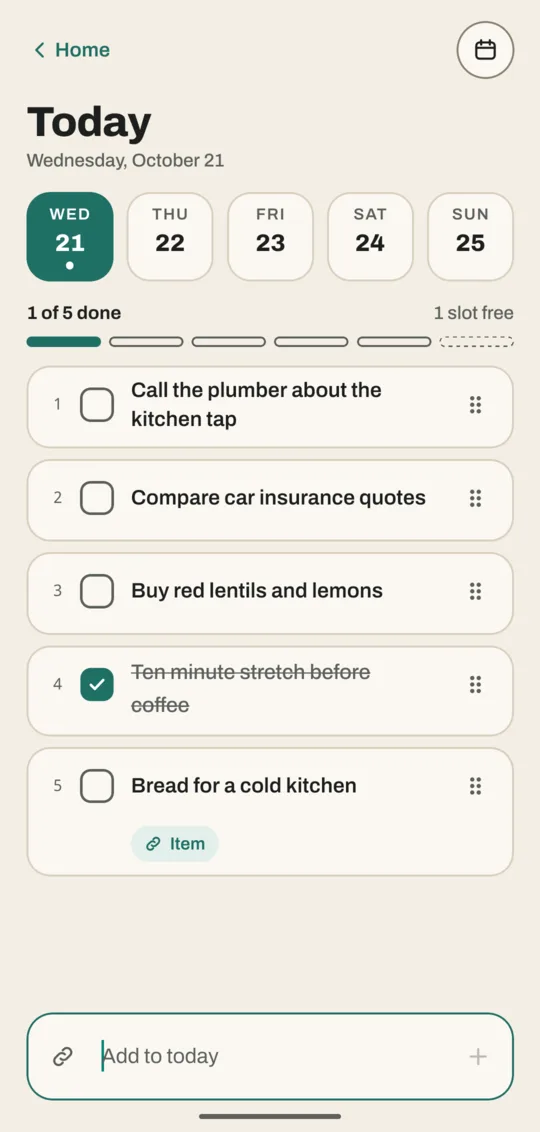
Link a task to a save
- Tap the link button at the left of the add box. Add from your saves opens.
- Search or pick a save from Recent. It becomes a task with an Item label.
- Later, tap that label to open the save.
From a save's own screen, tap ⋯, then Plan it, and pick a day.
Tick off, reorder and change tasks
- Tap the box next to a task to finish it. It's crossed out and keeps its place.
- Drag the six-dot handle on the right to move a task up or down.
- Tap or hold a task's text for its menu: Move up, Move down, Edit, Move to another day, Open the saved item (for linked tasks), Drop and Delete.
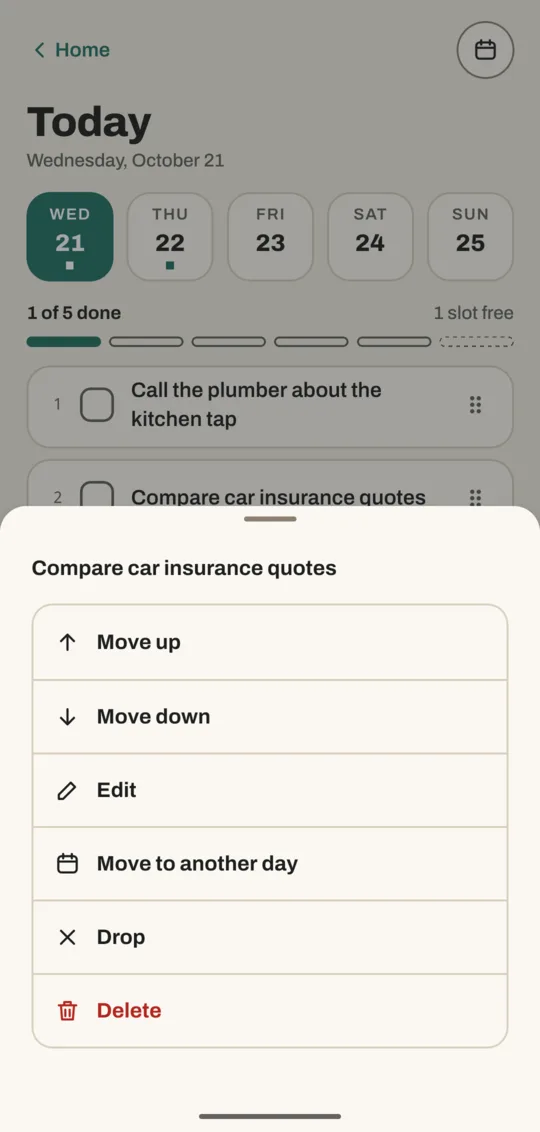
Drop means you've decided not to do it; the task stays in that day's history marked Dropped. Delete removes it as if it never existed.
Plan tomorrow tonight
- In the day strip, tap tomorrow. The line under the day's name says "plan tomorrow tonight".
- Add tomorrow's tasks and drag them into order.
- Check the dashed list under Moving here tonight, if not done. These are today's open tasks: any you don't finish join tomorrow tonight, below tomorrow's own tasks.
- Tap Done to go back to today.
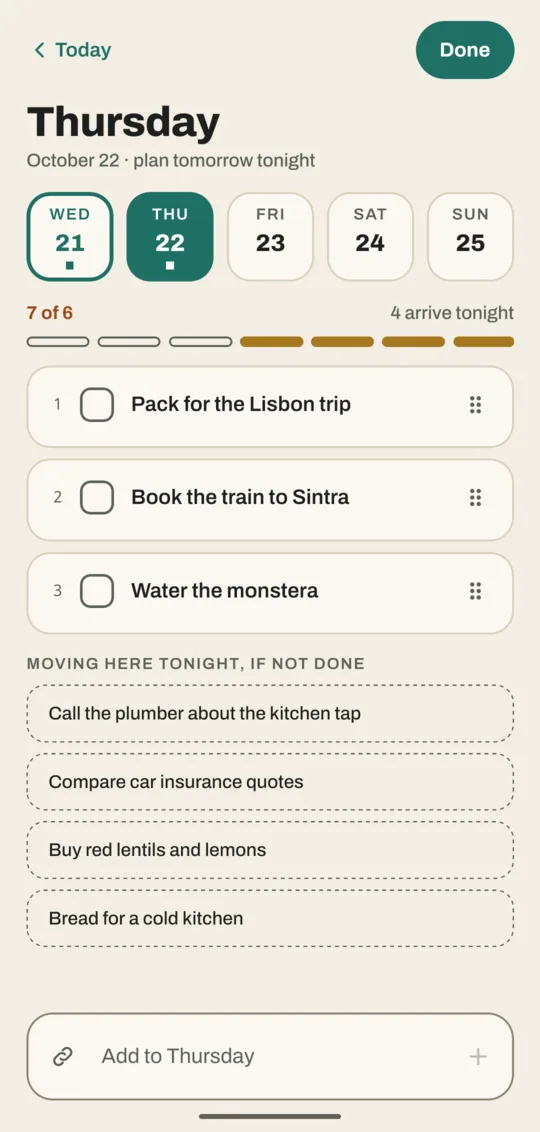
What happens to unfinished tasks
When a new day starts, open tasks move to today, below today's own tasks, with a label such as Carried 1 day. After a task has been carried three days, it offers Reschedule or drop. Tap it to choose Do today, Pick a date or Drop it.
Past days are read-only. Swipe the list to the right, or scroll the day strip back and tap an earlier day. You'll see what you finished (crossed out), what moved on ("Moved to Tue 20") and what you dropped (Dropped). Back to today returns you.
Get a nudge each evening
Go to Settings → Background & reminders and turn on Daily reminder. In the evening (after 7 PM unless you change Remind me after) you get one notification, such as "2 unfinished. Plan tomorrow." It's off by default.
Related
- Reminders
- Plan on the home page
- The Ivy Lee method, the idea Plan is built on
Don't have Noodle yet?
Free for Android. No sign-up, and everything stays on your phone.