Save from other apps with the Share button
Share a YouTube video, an Instagram post, a web page, photos, a PDF, a WhatsApp voice message or a contact to Noodle, then file it in a category.
On this page
The quickest way to save something is the Share button in the app you're already using. Noodle saves it straight away, and you file it when you're ready.
Save a link from another app
- In YouTube, Instagram, Chrome or any app, tap Share.
- In the share sheet, tap Noodle Assistant. (The first time, you may have to scroll or tap More to find it.) Noodle opens on the Save page with the link already saved as a part.
- Tap Done. The File it sheet opens.
- Tap a category, such as Recipes, or tap Later to file it another time.
- Tap File in Recipes (the button shows the category you picked). Noodle shows Filed in Recipes and takes you back to the app you came from.
Noodle then reads what's behind the link on its own: what a YouTube video says, an Instagram post's caption and the words in its pictures, or the text of a web article. You can file before it finishes; the sheet says Still reading 1 part while it works.
Save photos, videos or a PDF
- In Photos, Files or your gallery app, select one or several items.
- Tap Share, then Noodle Assistant. They're saved together, as one item with a part for each file.
- Tap Done, then file it or tap Later.
Noodle reads the words in your photos (a receipt, a sign, a screenshot) and the pages of a PDF, so you can search for them later. More in photos, videos and PDFs.
Save a WhatsApp voice message or a contact
- In WhatsApp, touch and hold the voice message or contact, then tap the share icon.
- Pick Noodle Assistant, then tap Done to file it.
A voice message is saved with its audio, and Noodle writes down what was said (if the voice download for that language isn't on your phone yet, Noodle gets it first). A contact is saved as a short note with its name, numbers and email, which you can tap later to call or write.
When a link is already saved
If you share a link you saved before, Noodle says Already saved as and the title, with Dismiss, Open it and Save as new. Tap Open it to see the earlier save, or Save as new to save it again.
Stay in Noodle after filing
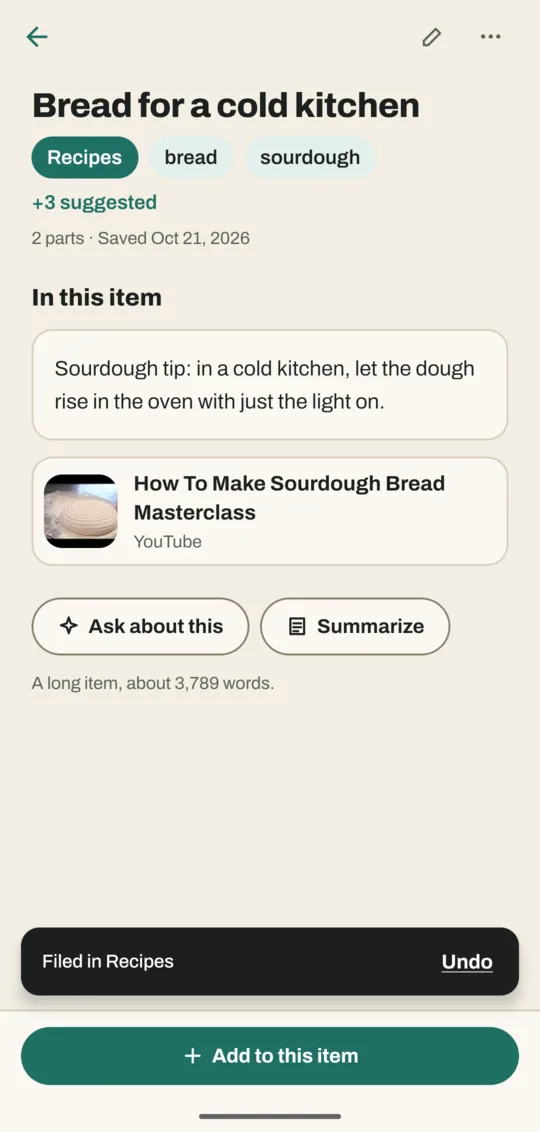
By default, filing a share takes you back to the app you shared from. To stay in Noodle instead, go to Settings → Quick capture and turn off After sharing, go back to the app you came from. Filing then opens the save, with an Undo button on the Filed in message.
Good to know
- Filed it in the wrong category? Open the save in Noodle and tap the category under its title to change it.
- Shared text with no link in it is saved as a note, word for word.
- Reading a link needs the internet. Offline, the link is kept and Noodle tries again when you're back online.
Related
Don't have Noodle yet?
Free for Android. No sign-up, and everything stays on your phone.